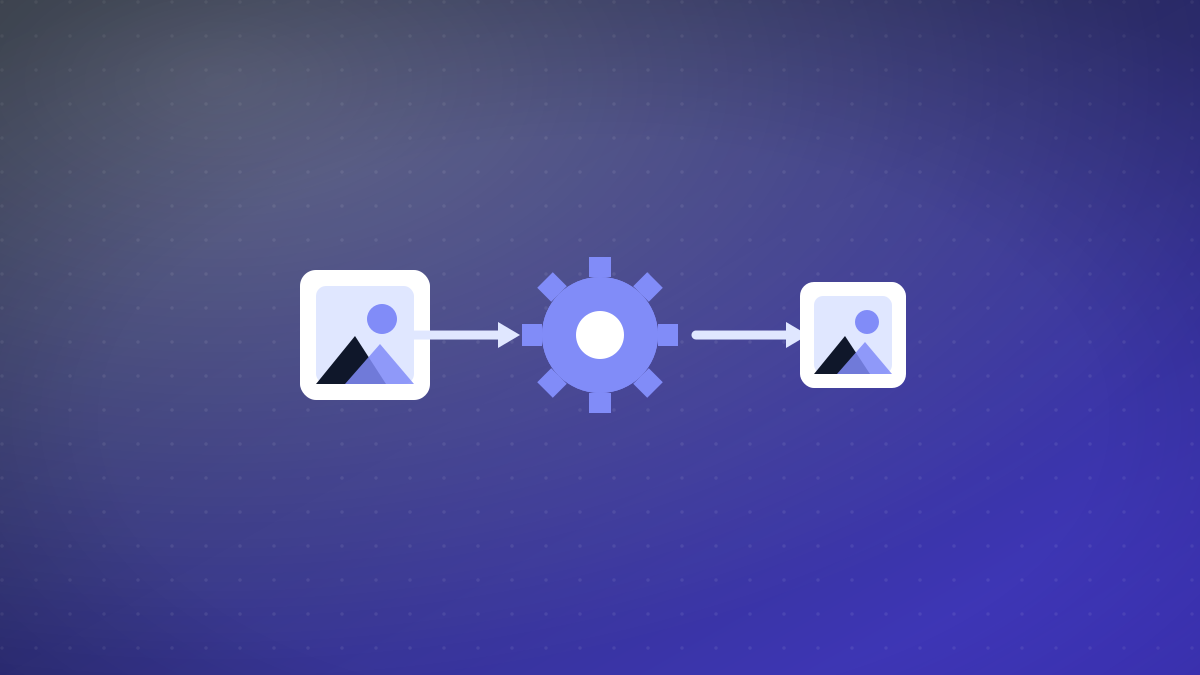
Streamline Your Vite Build with Automated Image Optimization
Manual image optimization is a time-consuming process that often gets overlooked in development workflows. Vite's plugin ecosystem provides a powerful solution for automating this critical performance optimization. By integrating image optimization directly into your build process, you ensure consistent delivery of modern formats like WebP and AVIF without additional manual steps.
Why Automate Image Optimization in Vite?
Traditional image optimization workflows require manual processing before committing assets to your project. This approach creates several pain points: inconsistent quality settings, forgotten optimizations, and increased development overhead. Automated optimization during build ensures every image receives proper treatment regardless of when it was added to the project.
- Inconsistent resultsDifferent team members use different tools and settings
- Time-consumingRequires separate processing step for each image
- Human errorEasy to forget optimization or use wrong settings
- Consistent qualityEvery image processed with same settings and algorithms
- Integrated workflowOptimization happens automatically during build process
- Modern formatsAutomatic WebP/AVIF conversion with fallback support
Installing and Configuring the Vite Plugin
Getting started with automated image optimization requires minimal setup. The plugin integrates seamlessly with your existing Vite configuration and begins processing images immediately after installation.
- 1Install the pluginAdd the Optimagio Vite plugin to your project using your package manager of choice
- 2Configure vite.config.jsImport and add the plugin to your Vite configuration with your desired settings
- 3Set optimization parametersConfigure quality levels, format preferences, and any custom optimization rules
- 4Run your buildExecute your build command and watch images get optimized automatically
// vite.config.js
import { defineConfig } from 'vite'
import optimagio from '@optimagio/vite-plugin'

export default defineConfig({
  plugins: [
    optimagio({
      formats: ['webp', 'avif'],
      quality: 80,
      include: ['**/*.{jpg,jpeg,png}']
    })
  ]
})
Configuration Options and Best Practices
The plugin offers extensive configuration options to tailor optimization to your specific needs. Understanding these settings helps you balance between image quality and file size effectively.
- formats
- Array of output formats: ['webp', 'avif', 'original']. Defaults to modern formats with original fallback
- quality
- Compression quality from 1-100. Higher values preserve more detail but increase file size
- include/exclude
- Glob patterns to specify which images to process or skip during optimization
- breakpoints
- Array of widths for responsive image generation. Enables srcset creation for different screen sizes
Modern Format Support: WebP and AVIF
The plugin's ability to generate modern image formats is one of its most valuable features. WebP and AVIF offer superior compression efficiency compared to traditional formats, often reducing file sizes by 25-50% without perceptible quality loss.
| Format | Browser Support | Compression Efficiency | Best For |
|---|---|---|---|
| WebP | Wide (Chrome, Firefox, Edge) | Excellent | General purpose images |
| AVIF | Growing (Chrome, Firefox) | Outstanding | High-quality photos |
| JPEG | Universal | Good | Maximum compatibility |
| PNG | Universal | Fair | Transparency needs |
Integration with Development Workflow
The true power of automated optimization emerges when integrated into your complete development workflow. The plugin works seamlessly with hot module replacement during development and optimizes production builds for maximum performance.
- 1DevelopmentImages are optimized on-demand during development with HMR support for instant updates
- 2Production BuildAll images undergo full optimization with configured settings during production build
- 3DeploymentOptimized images are included in build output ready for deployment
- 4Performance MonitoringMonitor Core Web Vitals improvements from automated optimization
Handling Edge Cases and Custom Requirements
While the plugin handles most optimization scenarios automatically, some projects require custom handling for specific image types or special requirements. The configuration system provides flexibility for these edge cases.
Automate image optimization with Optimagio
Doing this by hand for every image does not scale. Optimagio optimizes and converts your images (WebP and AVIF) automatically across your API, web app, and CMS — so every page ships the smallest possible files without manual work. See plans and pricing →