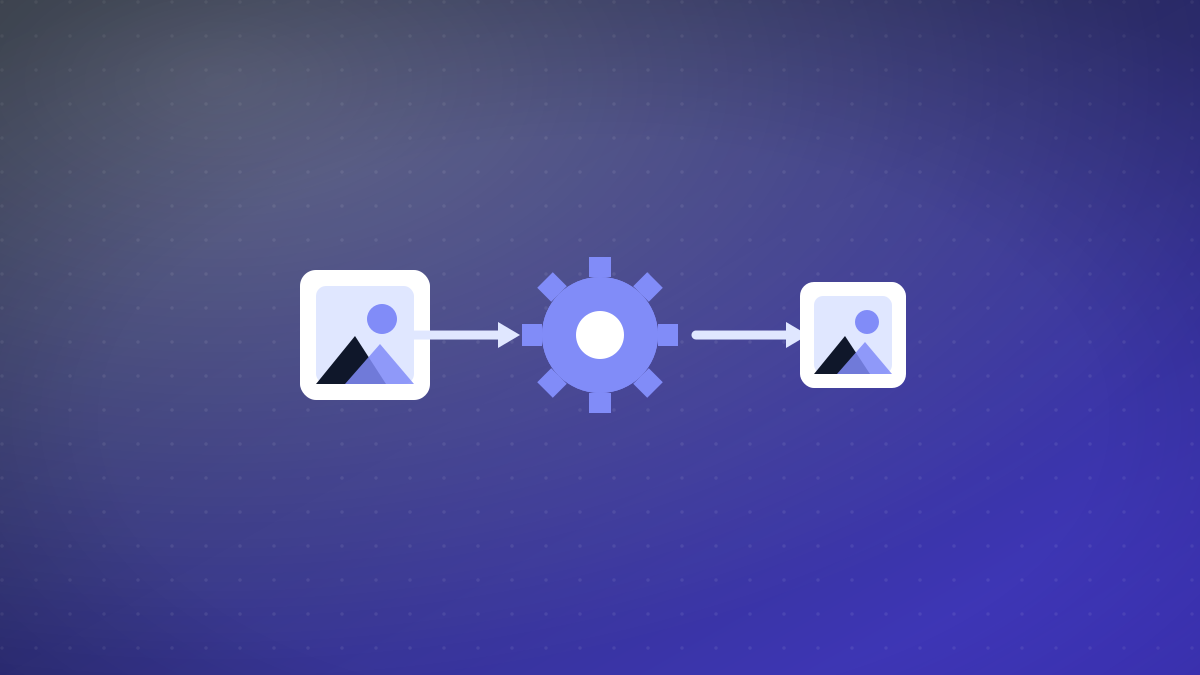
The Need for Automated Image Optimization
Legacy image libraries often contain unoptimized JPEGs and PNGs that slow down websites and consume excessive bandwidth. Manual optimization becomes impractical when dealing with hundreds or thousands of images. Automated batch processing using Node.js and CLI tools provides a scalable solution that ensures consistency, maintains quality standards, and saves development time.
Setting Up Your Optimization Environment
Before writing batch processing scripts, you'll need to set up your development environment with the right tools and libraries. The core requirement is Node.js with the sharp library, which provides high-performance image processing capabilities.
- 1Install Node.js and npmEnsure you have Node.js version 14 or higher installed. Verify with node --version and npm --version in your terminal.
- 2Initialize your projectCreate a new directory and run npm init -y to set up a package.json file for your optimization scripts.
- 3Install sharp libraryRun npm install sharp to add the image processing library that supports WebP, AVIF, JPEG, PNG, and TIFF formats.
- 4Create directory structureSet up input and output directories to organize your source images and optimized results separately.
Building the Batch Optimization Script
The core of your automation is a Node.js script that processes images recursively. This script should handle different file formats, apply appropriate compression settings, and manage errors gracefully.
const sharp = require('sharp');
const fs = require('fs').promises;
const path = require('path');

async function optimizeImage(inputPath, outputPath) {
  try {
    const image = sharp(inputPath);
    const metadata = await image.metadata();

    if (metadata.format === 'jpeg' || metadata.format === 'jpg') {
      await image.webp({ quality: 80 }).toFile(outputPath);
    } else if (metadata.format === 'png') {
      await image.png({ compressionLevel: 9 }).toFile(outputPath);
    }

    console.log(`Optimized: ${inputPath} -> ${outputPath}`);
  } catch (error) {
    console.error(`Error processing ${inputPath}:`, error.message);
  }
}

async function processDirectory(inputDir, outputDir) {
  const items = await fs.readdir(inputDir, { withFileTypes: true });

  for (const item of items) {
    const fullInputPath = path.join(inputDir, item.name);
    const fullOutputPath = path.join(outputDir, item.name);

    if (item.isDirectory()) {
      await fs.mkdir(fullOutputPath, { recursive: true });
      await processDirectory(fullInputPath, fullOutputPath);
    } else if (item.isFile()) {
      const ext = path.extname(item.name).toLowerCase();
      if (['.jpg', '.jpeg', '.png', '.webp'].includes(ext)) {
        await optimizeImage(fullInputPath, fullOutputPath);
      }
    }
  }
}

// Run optimization
processDirectory('./input', './output').then(() => {
  console.log('Batch optimization complete');
});Advanced Format Conversion Techniques
Modern formats like WebP and AVIF offer significant compression advantages over traditional JPEG and PNG. However, each format has specific use cases and optimization parameters that affect both quality and compatibility.
| Format | Best For | Quality Setting | Browser Support |
|---|---|---|---|
| WebP | Photos and complex images | 75-85 | Chrome, Firefox, Edge, Safari 14+ |
| AVIF | High compression needs | 50-70 | Chrome, Firefox, Opera |
| JPEG | Maximum compatibility | 75-85 | Universal |
| PNG | Transparency required | Compression 9 | Universal |
CLI Tools for Quick Optimization
For developers who prefer command-line tools or need to integrate optimization into shell scripts, several excellent CLI options exist. These tools can be combined with find and xargs for powerful batch processing across entire directory trees.
# Convert all JPEGs to WebP with ImageMagick
find ./images -name "*.jpg" -exec magick {} -quality 80 {}.webp \;

# Optimize PNGs with pngquant
find ./images -name "*.png" -exec pngquant --force --ext .png {} \;

# Batch resize with sharp CLI
npx sharp --input="*.jpg" --output="./optimized" --format=webp --quality=80Error Handling and Performance Considerations
Batch processing large image libraries requires robust error handling to prevent single failures from stopping entire jobs. Additionally, performance optimization becomes crucial when processing thousands of images.
- Implement try-catch blocks
- Add memory usage monitoring
- Include progress reporting
- Set up retry logic for failed operations
- Implement parallel processing limits
Integrating with Build Processes and CI/CD
For ongoing optimization needs, integrate image processing into your development workflow. This ensures new images are automatically optimized before deployment, maintaining consistent performance standards across your application.
// package.json script for CI integration
{
  "scripts": {
    "optimize-images": "node scripts/optimize.js",
    "build": "npm run optimize-images && next build"
  }
}
Automate image optimization with Optimagio
Doing this by hand for every image does not scale. Optimagio optimizes and converts your images (WebP and AVIF) automatically across your API, web app, and CMS — so every page ships the smallest possible files without manual work. See plans and pricing →